Getting started · 6 min read
Set up your homeschool
Add the essentials, then choose which parts of Commonplace your family wants to use.
Open this area in CommonplaceThe guided setup asks only for what Commonplace needs to make the workspace useful. You can finish the rest later from Homeschool Setup.
Watch Megan’s quick welcome and setup video · 1 min 18 sec →
- 1
Name your family or homeschool
Enter whatever you call your homeschool. It might be a family name, a homeschool name, or something else. Commonplace uses it around your shared workspace; formal report details live under School Details.
- 2
Add each student
Use a familiar display name and choose a color. The color makes it easier to distinguish students across schedules and records.
- 3
Create the school year
Give the year a clear name and set its start and end dates. Attendance, budgets, books, courses, and reports use this boundary.
- 4
Choose what you want to keep track of
Select at least one section to begin. This is a family-wide choice, so student logins will not see a section the family has hidden.
- 5
Add a first resource or course if useful
If you chose Curriculum or Assignments & Grades, the wizard can help you add a starting item. After saving it, choose Edit to change its full details. Open only the sections you need; closing a section keeps your entries. You can also skip this step and add an item later.
- 6
Come back whenever you need to
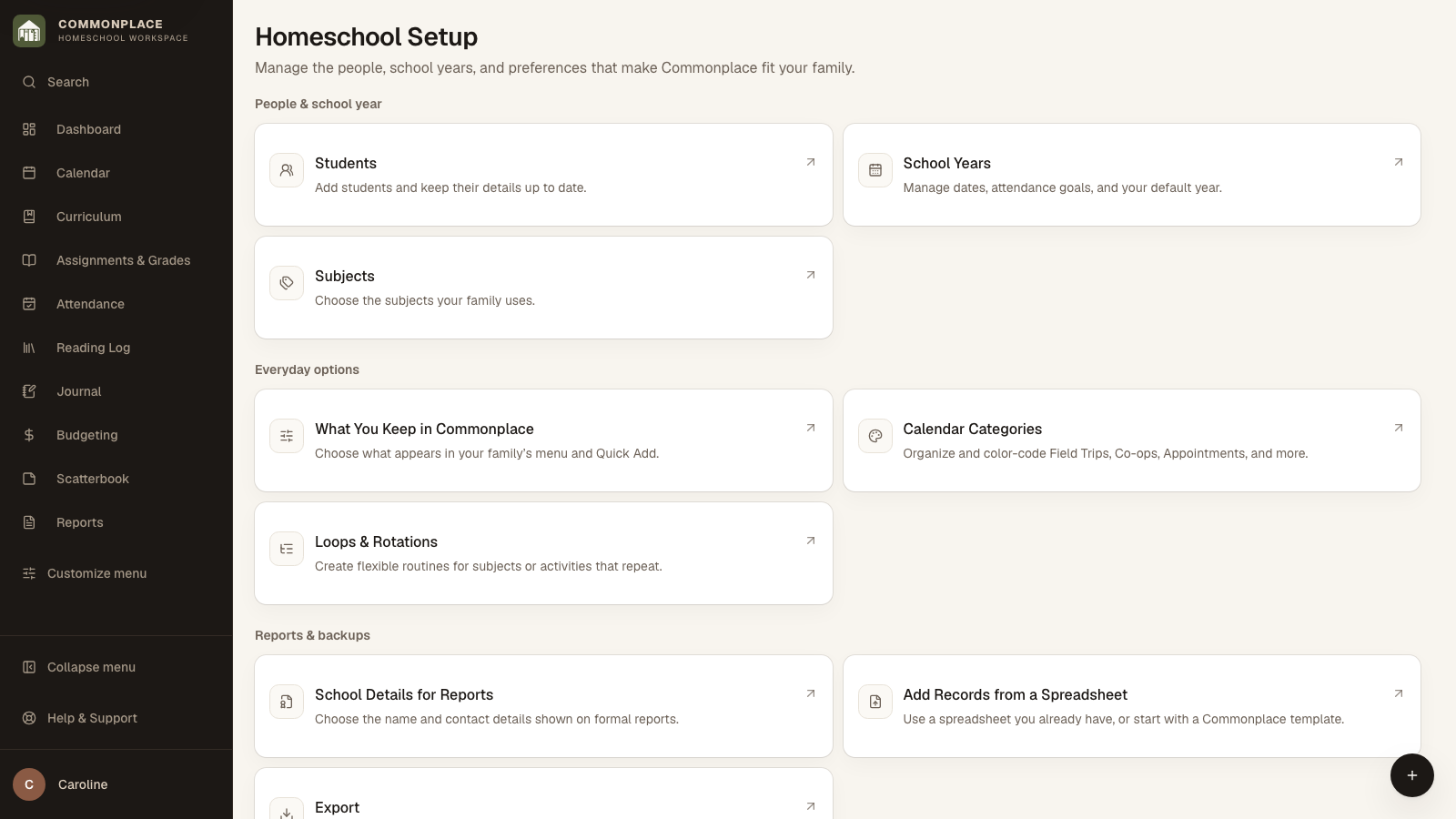
Open Homeschool Setup to add students, start another school year, update subjects, or change which sections appear. Turning a section off only hides it; your records remain in place.