Account & family · 7 min read
Manage family settings and logins
Update family details and give teachers or students the right level of access.
Open this area in CommonplaceThe family organizer controls the shared homeschool workspace. You can also give each teacher or student a separate login with the access that makes sense for them.
- 1
Open Homeschool Setup
Use Homeschool Setup to find students, school years, subjects, Calendar Categories, School Details for Reports, family settings, and logins.
- 2
Keep family records current
Update students and school years as your homeschool changes. Avoid creating duplicate students when an existing record only needs editing.
- 3
Choose the sections your family uses
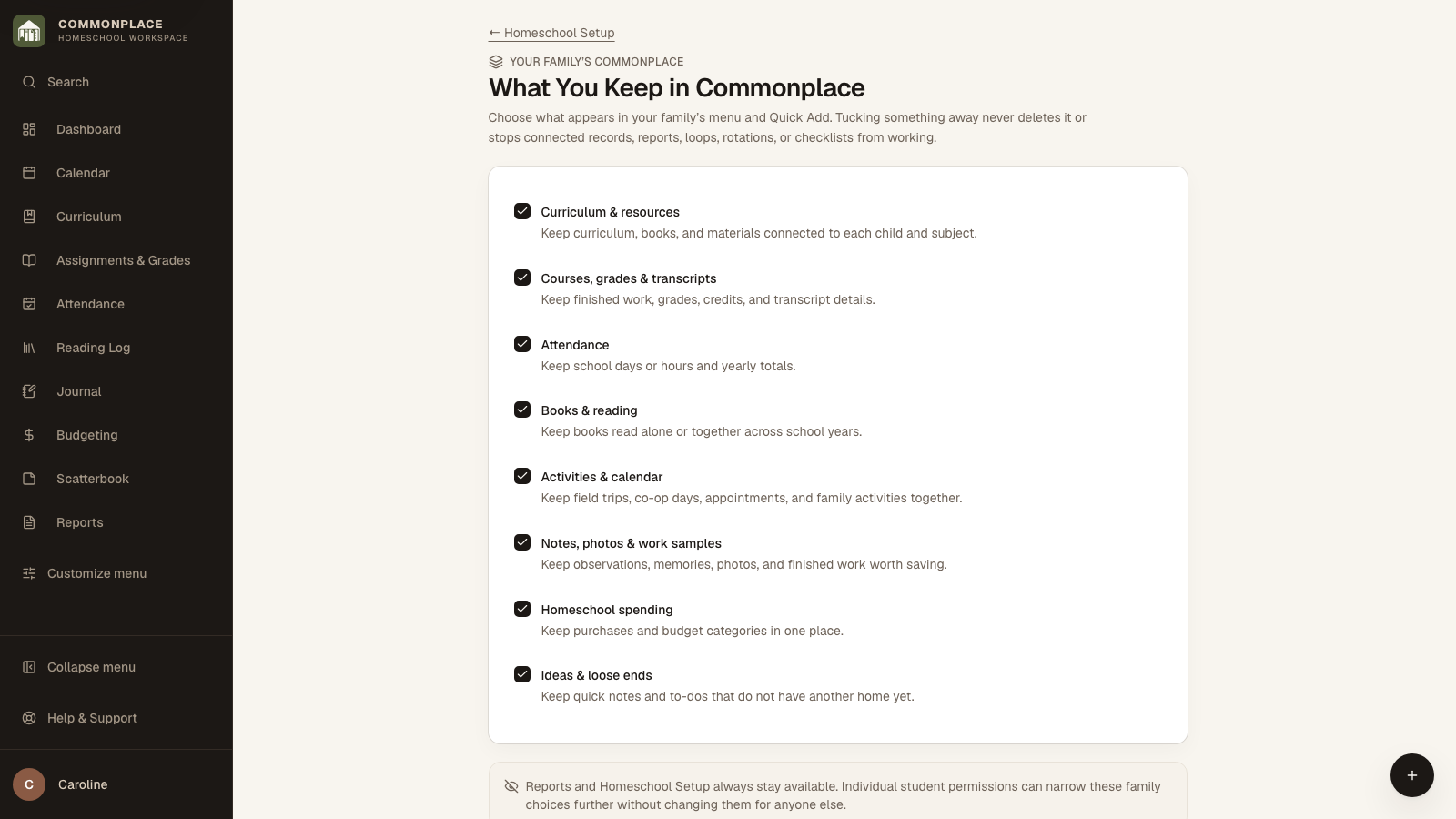
Open What You Keep in Commonplace to turn everyday sections on or hide them. This choice applies to the whole family, and hiding a section never deletes its records or stops the feature from working.
- 4
Shape the sidebar
Open Customize menu at the bottom of the sidebar. Use Add or hide sections to change what appears, and Reorder sections to put the most-used areas where they are easiest to reach.
- 5
Invite another teacher
Create or invite a teacher login when another adult should help manage the family workspace.
- 6
Manage an invitation
In Family Accounts, Resend invitation sends another email. Cancel invitation turns off that sign-up link. For an expired invitation, choose Send new invitation to send a fresh link.
- 7
Create student access
Give a student their own login when they should use My Day or other permitted areas.
- 8
Narrow a student login when needed
A student can see only the family-wide sections that are turned on, and you can narrow that student’s access further. Dashboard remains available.
- 9
Review access after changes
When responsibilities change, update the login’s role or visible sections so access still matches your intent. Adding something through Quick Add can turn a hidden section back on and briefly mark it Added in the sidebar.