Getting started · 5 min read

Use the dashboard and Daily Flow

See what matters today and personalize the view for your family.

Open this area in Commonplace

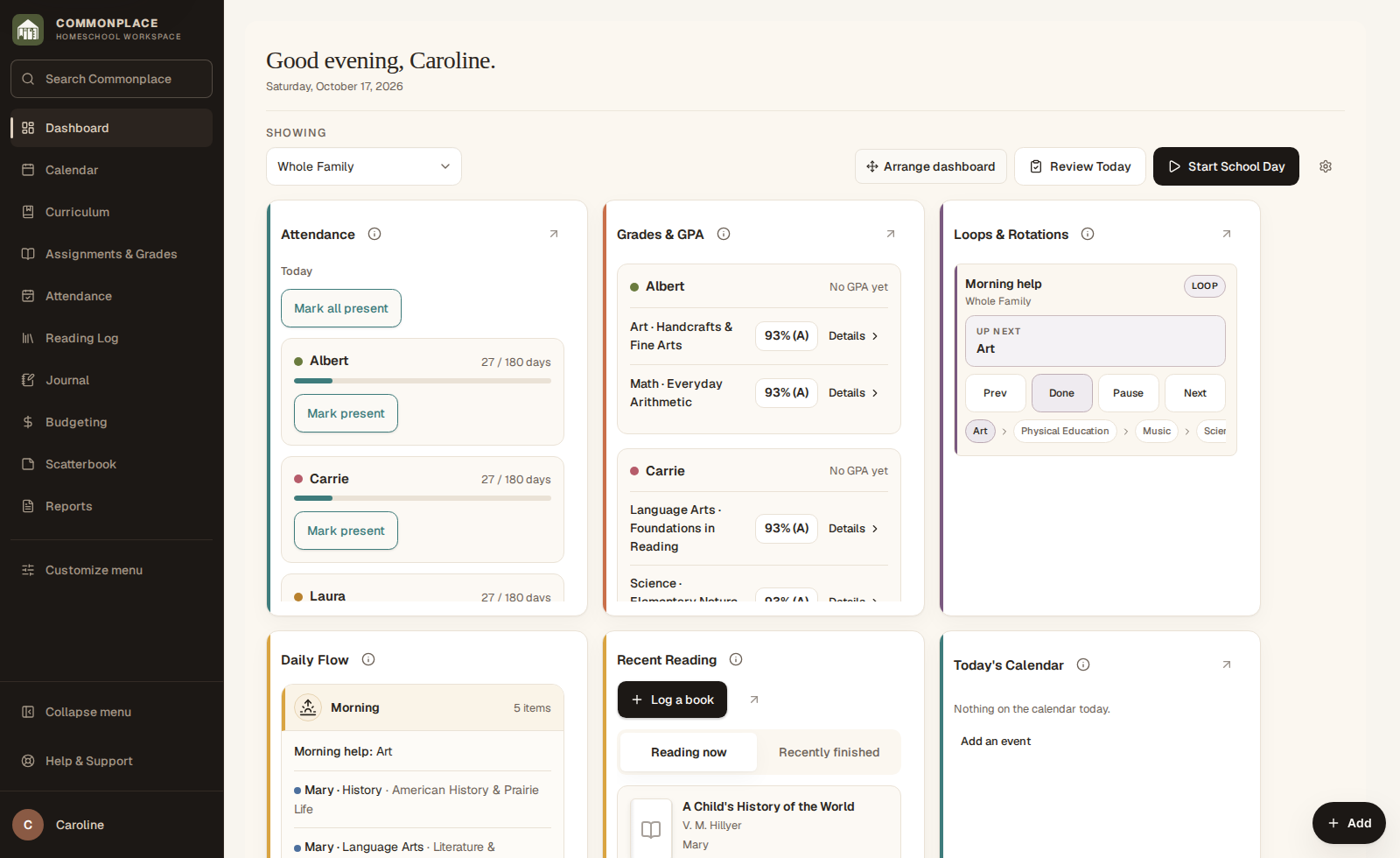
The dashboard brings together the sections you choose. Daily Flow shows scheduled courses, curriculum, and routines grouped by time of day. Appointments and calendar events appear separately in Today’s Calendar.

26 seconds · No sound needed

Make your dashboard feel like home

Tidy a deliberately uneven layout while keeping the widgets’ custom widths and heights.

Read the video captions
  1. Make room for the parts you use.
  2. Arrange your dashboard when you’re ready.
  3. Tidy up keeps your chosen widget sizes.
  4. Keep arranging, or finish when it feels right.
  5. Commonplace · Homeschool workspace
Commonplace dashboard with attendance, grades, routines, and Daily Flow for the fictional Ingalls family
Fictional family data shown.
  1. 1

    Choose dashboard sections

    Open Customize dashboard and enable the sections you want to see, such as attendance, checklist, calendar, reading, journal, grades, or budget.

  2. 2

    Arrange the page

    On a larger screen, choose Arrange dashboard to move or resize sections, then choose Done arranging. Give the sections you use most a little more room.

  3. 3

    Choose what appears in Daily Flow

    For a course or curriculum item, select at least one Show on Daily Flow weekday. It appears when the date matches one of those days and falls within any starting and ending dates you set.

  4. 4

    Use Time of Day for grouping

    Time of Day groups work under Morning, Midday, Afternoon, or Evening. Courses and curriculum without a time appear under Anytime. A loop or weekly rotation needs a Time of Day to appear here.

  5. 5

    Use Daily Flow as a plan

    See scheduled learning together. Use Checklist to check off work, or the Loops & Rotations widget to mark a routine activity complete.

  6. 6

    Filter when needed

    Use the student and date controls to focus on one child or another day without changing the underlying schedule.

  7. 7

    Use Focus Mode

    Choose Start School Day on the Dashboard to open Focus Mode, a simpler view of the day’s work. Student logins open their own My Day view.