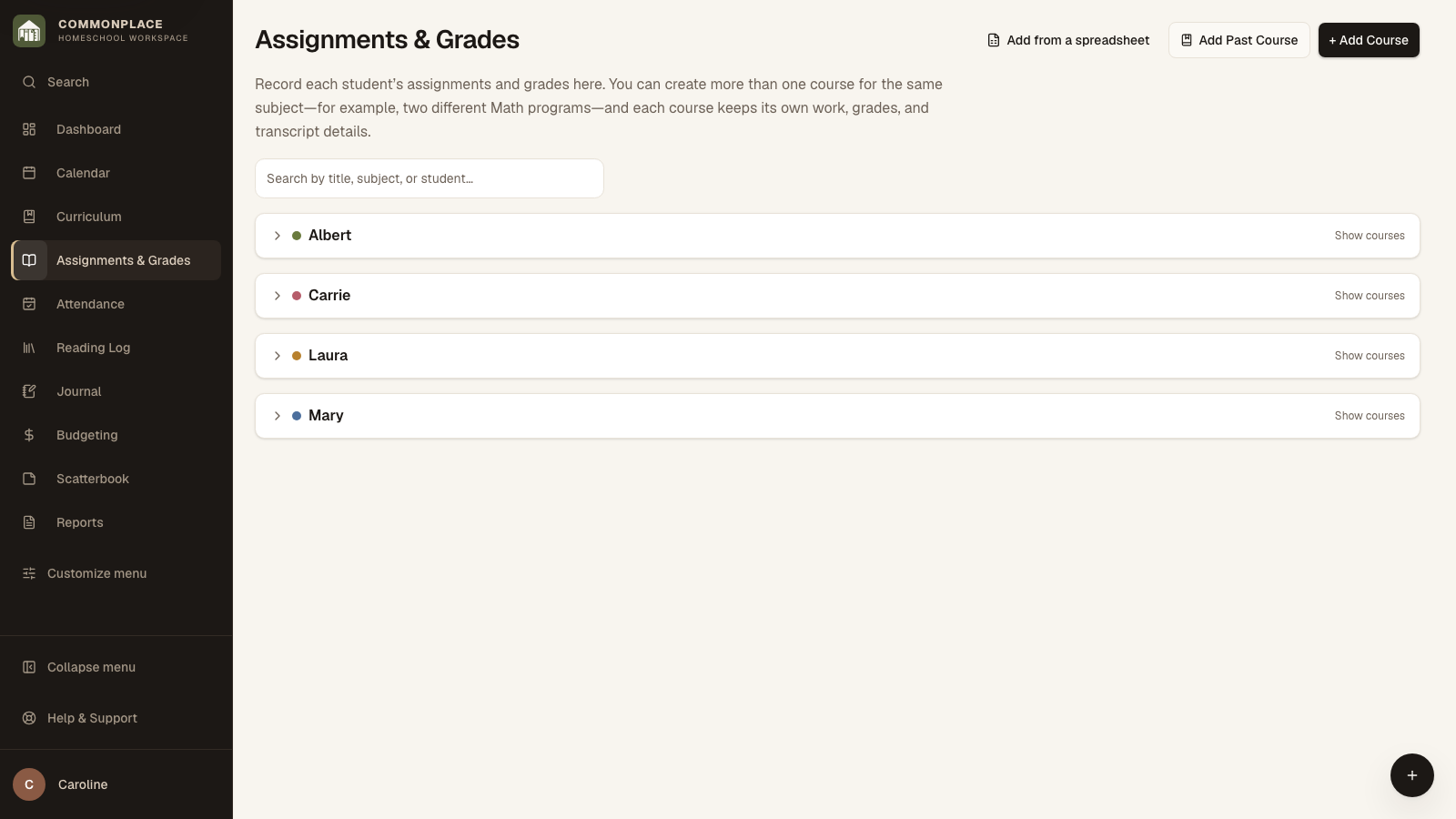
Courses hold assignments, scores, grading rules, completion status, and transcript details. Each course can use its own grading method—or no calculated grade at all.
Attach an additional resource to an existing course, keeping one set of assignments and grades.
Read the video captions
Keep several resources with one course.
Choose another book, notebook, or program.
Link it to the course you already have.
Your assignments and grades stay together.
The resource is also kept in Curriculum.
Commonplace · Homeschool workspace
Fictional family data shown.
1
Add a course
Choose the student, subject, and school year. Add a title when the subject name alone is not specific enough.
2
Choose optional course details
Select one or more weekdays when the course should appear in Daily Flow. Time of Day only groups it within the day. You can also add a term, grade level, planned credit, description, or primary curriculum.
3
Select a grading method
Use Total Points when each graded point should count equally, Weighted Categories when groups such as Tests and Daily Work should count differently, or Complete/Incomplete when you do not need a percentage. Add categories before logging weighted work.
4
Open the course
Select View Gradebook to see the current result and the assignment list for that course.
5
Add assignments
Enter the assignment name and date, then add points, category, notes, duration, or work samples as appropriate.
6
Record or review results
Enter the student’s score or completion information yourself, or review work a student submitted from My Day. Commonplace updates the course record after you accept it.
7
Finish the course
Update course status and final details when the course is complete. Review the result before producing report cards or transcripts.
8
Add a past course
Use Add a Past Course for work already finished, including outside or dual-enrollment courses. Choose Percentage, Letter grade, or Complete/Failed. For a letter, Commonplace keeps the grade as received and uses its GPA value from that school year’s grading scale; it does not invent a percentage. Add or adjust the scale in Homeschool Setup if the letter is missing.