Account & family · 5 min read
Back up and export your records
Download readable spreadsheets, a complete data file, or copies of your uploaded photos and files.
Open this area in CommonplaceBackup & Export gives you your own copy of the information and files you keep in Commonplace. Exports are for safekeeping or moving information elsewhere; they cannot currently be loaded back into Commonplace as a restore.
- 1
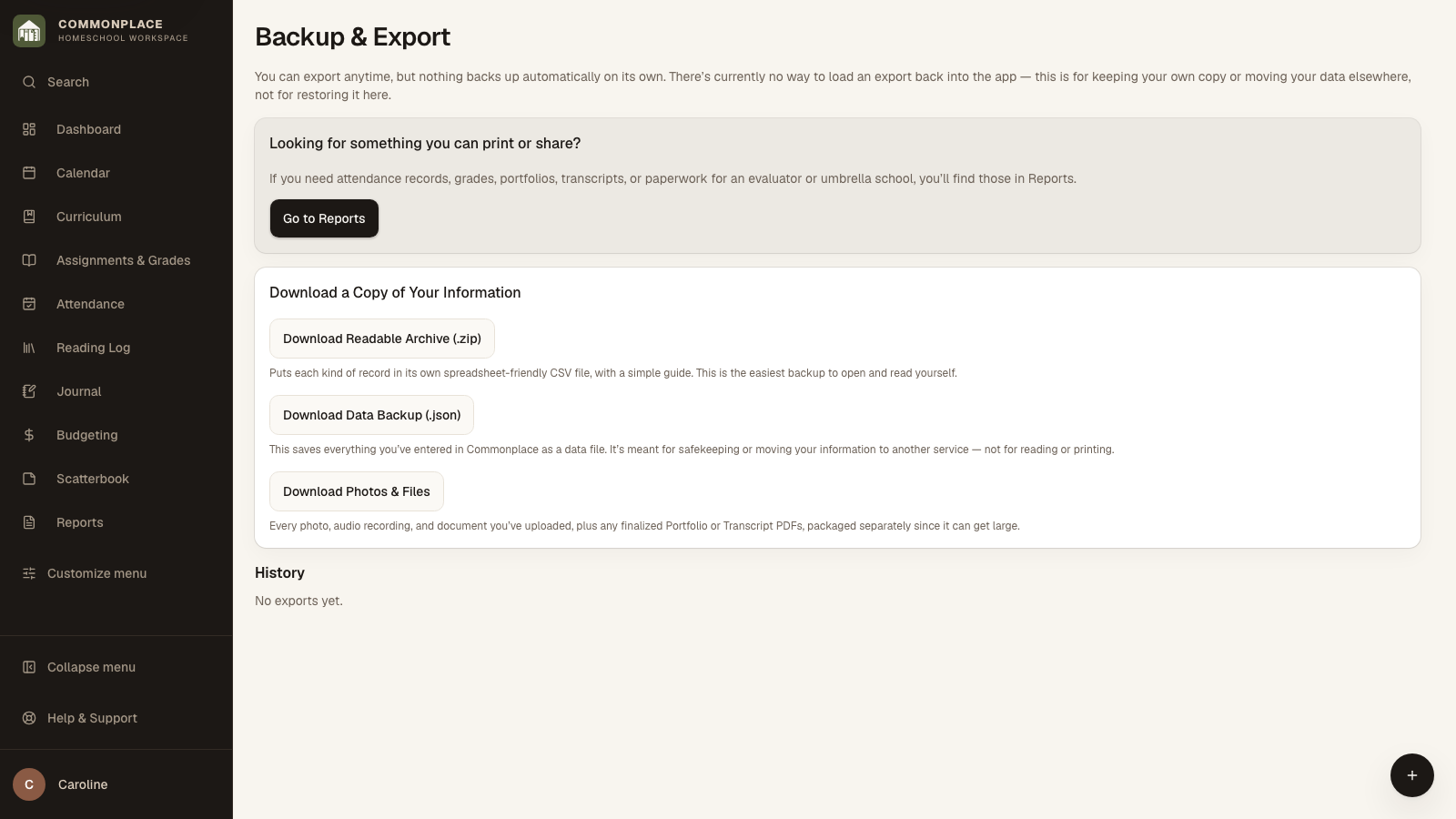
Open Backup & Export
Find it under Homeschool Setup whenever you want a fresh copy of your family’s information.
- 2
Choose Readable Archive for everyday safekeeping
Download and open the ZIP folder. Inside are separate CSV spreadsheets for each kind of record and a guide. You can open the spreadsheets in Excel, Numbers, or Google Sheets.
- 3
Choose Data Backup for a complete data file
JSON is a format used by software. This download contains your saved record data for use with another tool. Choose Readable Archive if you want spreadsheets you can read yourself; uploaded photos and files are downloaded separately.
- 4
Choose Photos & Files for uploads
This ZIP folder gathers uploaded photos, audio recordings, documents, and saved Portfolio or Transcript PDFs. It can take longer to prepare when you have many files.
- 5
Download an earlier export
Use History to download a completed export again. Create a new one whenever you want the latest records.
- 6
Use Reports for finished paperwork
For attendance records, grade reports, portfolios, transcripts, or evaluator paperwork, use Reports instead of Backup & Export.