Keep records · 6 min read

Record attendance

Track days or hours for the family together or for individual students.

Open this area in Commonplace

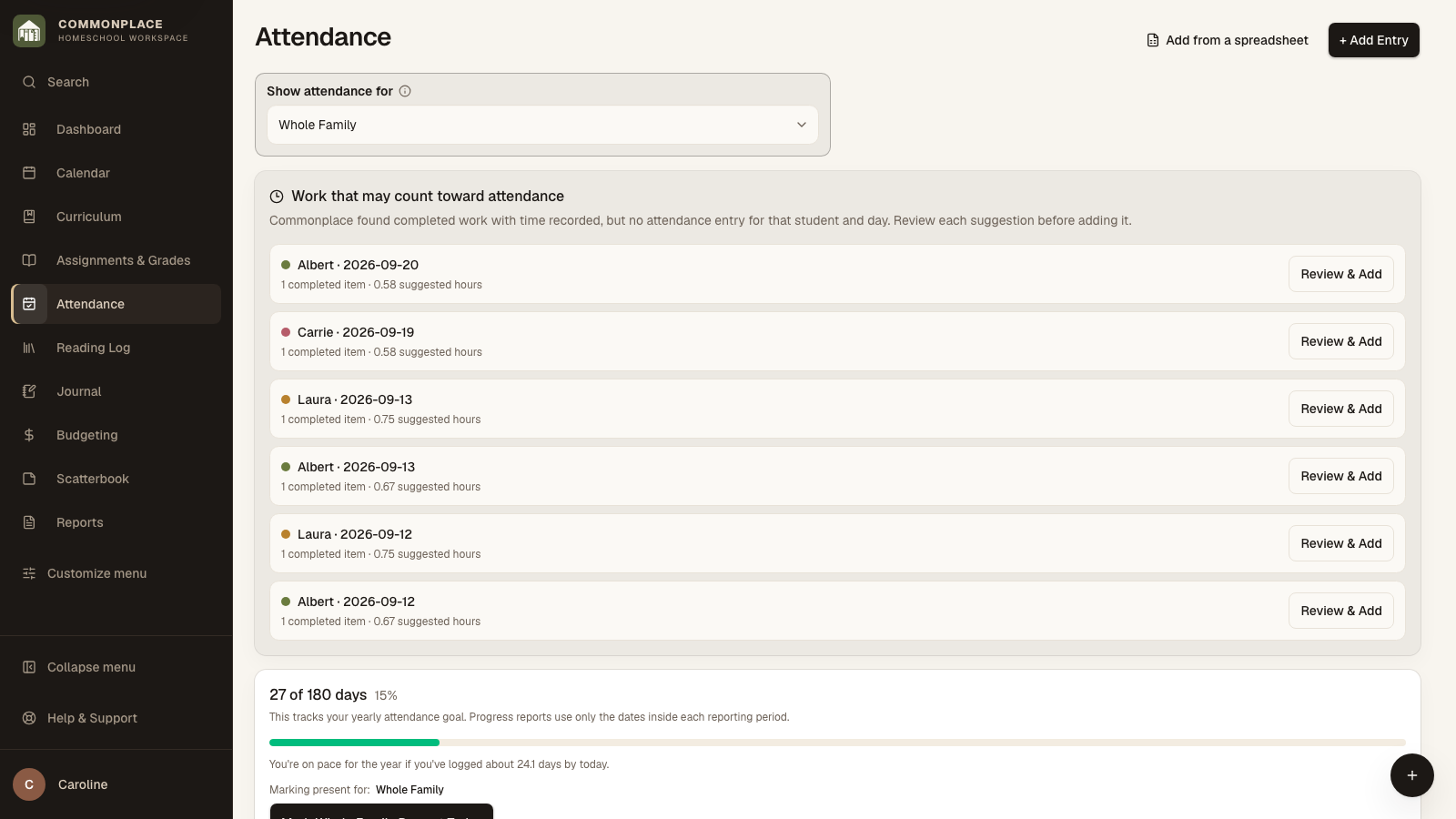
Attendance is organized by school year and can be recorded for the whole family or separately for each student. Choose the approach that matches your actual record-keeping needs.

38 seconds · No sound needed

Attendance in a few clicks

Use Whole Family for students without a separate entry, adjust individual students, and open that day’s records.

Read the video captions
  1. Keep attendance close at hand.
  2. Click a date to review that day.
  3. Whole Family fills in students without their own entry.
  4. Or adjust attendance for each child.
  5. Save without searching through a long list.
  6. Need more detail? Open this day’s entries.
  7. Commonplace · Homeschool workspace
Commonplace attendance calendar for the fictional Ingalls family
Fictional family data shown.
  1. 1

    Choose a school year

    Select the year whose attendance you want to view. The calendar and progress totals update together.

  2. 2

    Choose whose attendance to view

    View the whole family or one student. When a student has no entry for a date, their attendance comes from the Whole Family entry for that date, if one is recorded.

  3. 3

    Record today quickly

    Choose Mark present beside a student, or Mark all present for everyone without an entry today. These quick actions record a full day for today. Edit the entry if you need hours, half-day status, or a note. In the attendance editor for a selected date, Mark all present fills Full day for students without an entry; choose Save changes to record them.

  4. 4

    Add a past or detailed entry

    Select a date and status. If the school year tracks days, hours are optional. If it tracks hours, enter the day’s total. Core Hours appears only when that school year has a separate core-hours goal.

  5. 5

    Review progress

    Use the calendar and summary card to see recorded days or hours and progress toward the selected school-year goal.

  6. 6

    Print an attendance report

    Open Reports, select Attendance, choose the student, year, and optional date range, then generate the record.