Keep records · 6 min read

Journal the year and build portfolios

Capture short dated memories and collect selected learning records into a portfolio.

Open this area in Commonplace

The journal is designed for quick dated notes and photos. Portfolio records can also come from calendar activities, reading, assignments, and uploaded documents.

42 seconds · No sound needed

Make a portfolio, then keep a copy

Choose the books and work you want to include. Keep a compact reading list, or choose to include book notes.

Open the sample PDF ↗
Read the video captions
  1. Choose the books and work you want to include.
  2. Keep a compact reading list, or choose to include book notes.
  3. Save a new portfolio to create a dated version.
  4. Preview the saved pages, then download the PDF.
  5. Selected work and books stay clearly separated.
  6. Activities have their own space, too.

38 seconds · No sound needed

Keep a memory while offline

Keep a journal memory during an actual connection loss, reconnect, and open the saved entry.

Read the video captions
  1. Prepare this notebook while connected.
  2. Keep a memory when your connection drops.
  3. Save it safely in this browser’s notebook.
  4. See which entries are waiting to send.
  5. Reconnect to send it to your account.
  6. Open the saved entry when you’re ready.
  7. Commonplace · Homeschool workspace
Commonplace family journal for the fictional Ingalls family
Fictional family data shown.
  1. 1

    Choose whose journal to view

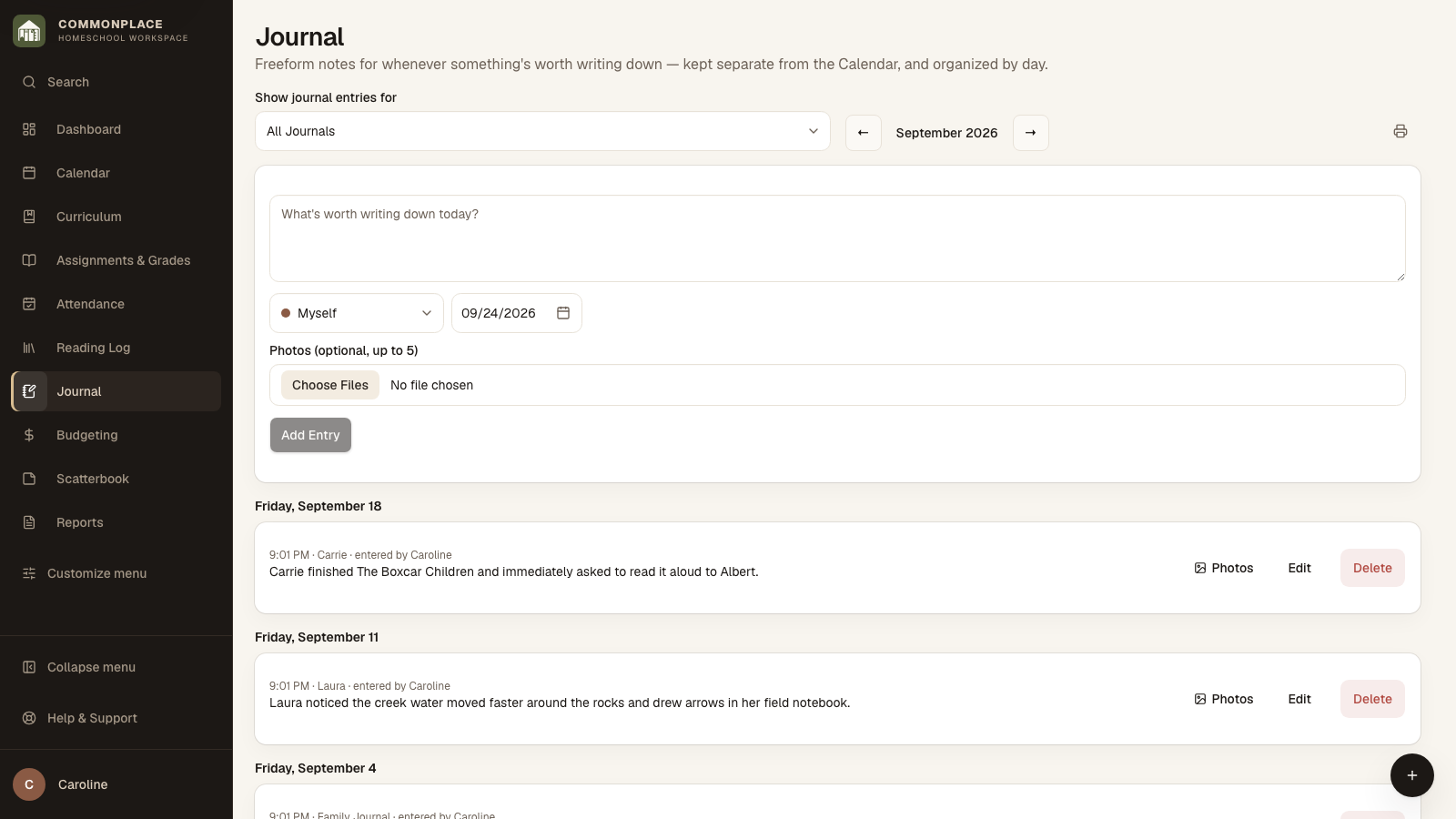
    In Show journal entries for, choose Family Journal, a student, or Myself for your personal notes. Then move to the month you want. Family Journal entries can be seen by family members with Journal access. Personal notes stay out of student journals; teachers in your family can still see them in Everyone.

  2. 2

    Add a dated entry

    Write a short note about learning, a milestone, a field trip, or something worth remembering.

  3. 3

    Attach photos

    Add up to five photos when they help preserve the moment or document the work.

  4. 4

    Review or print a month

    Browse entries by day and use Print this month when you want a paper or PDF copy.

  5. 5

    Include structured records in portfolios

    Portfolio checkboxes are visible in the main calendar, book, and assignment forms. New events and assignments start unchecked; new books start included. For saved attachments, use Include in Portfolio or Choose portfolios. Included in Portfolio identifies selected attachments. You can make these choices while adding the record or come back later.

  6. 6

    Shape the portfolio

    Open Reports, choose Portfolios, select the student and school year, then add an optional cover, introduction, and closing note. Previewing lets you check the result without saving another copy.

  7. 7

    Keep the reading list compact

    Selected books appear as a numbered list of titles and authors. Include book notes is off by default; turn it on to add general book notes and notes for the selected child beneath each title. Photos and work samples you selected appear separately under Reading highlights, with their captions and portfolio notes.

  8. 8

    Save the finished version

    Choose Save a new portfolio when it is ready, then Download portfolio PDF to save it to your device. Save choices keeps your cover, introduction, and book-note choice without making a PDF. Preview portfolio shows your current choices without saving them. Find dated copies again under Saved portfolios. A saved portfolio PDF stays exactly as it was even if you later edit records or portfolio choices.