Plan · 7 min read
Plan with the calendar
Add one-time or repeating events, assign people, and connect learning details.
Open this area in CommonplaceCalendar events can be simple family appointments or richer learning records with students, teachers, subjects, categories, notes, and portfolio details.
- 1
Select Add Event
Enter a title and date. That is enough for a simple all-day family event.
- 2
Make the event repeat
Turn on recurrence, choose the repeating days, and set starting or ending dates when the event follows a regular rhythm.
- 3
Add only the details you need
Open Time and category to set times or choose a category. Open Who’s attending to choose students or teachers, and Learning details for the subject, loop, and school year. Event notes gives you room to describe the day. You can close any section again without losing what you entered.
- 4
Add photos while it is fresh
Choose up to five photos right in the Add Event window, or add them after the event is saved. Mark as a portfolio item is visible in the main form and starts unchecked for new events. Select it to include the event and optionally write what happened.
- 5
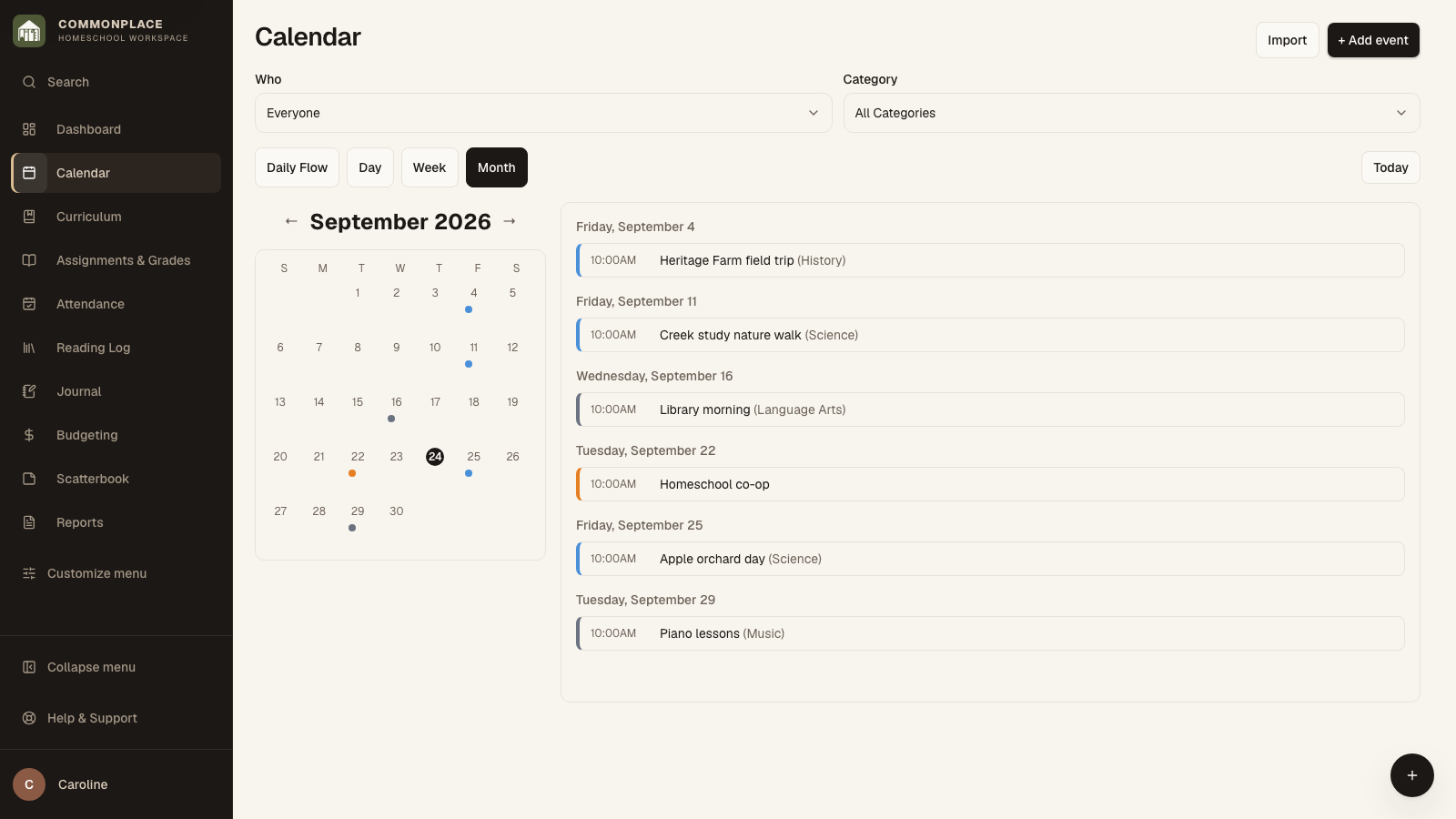
Review the calendar
Switch among month, week, day, and Daily Flow views. Use the Who and Category filters to narrow a busy calendar.
- 6
Edit a repeating event carefully
When prompted, choose whether the change applies to one occurrence or the repeating series.
- 7
Bring in another calendar if needed
Choose Import Calendar, upload the .ics file exported from Google Calendar, Apple Calendar, or Outlook, and select a date range. Preview the events, leave out anything you do not want, and check the people before importing.