Getting started · 7 min read
Add records from a spreadsheet
Bring a spreadsheet you already have, or use a Commonplace template for reading lists, past courses, or attendance.
Open this area in CommonplaceYou do not have to retype records you already keep in Excel, Numbers, Google Sheets, or another homeschool app. Commonplace can help match the columns in a spreadsheet you already have, and it always shows you what it found before anything is added.
- 1
Open Add Records from a Spreadsheet
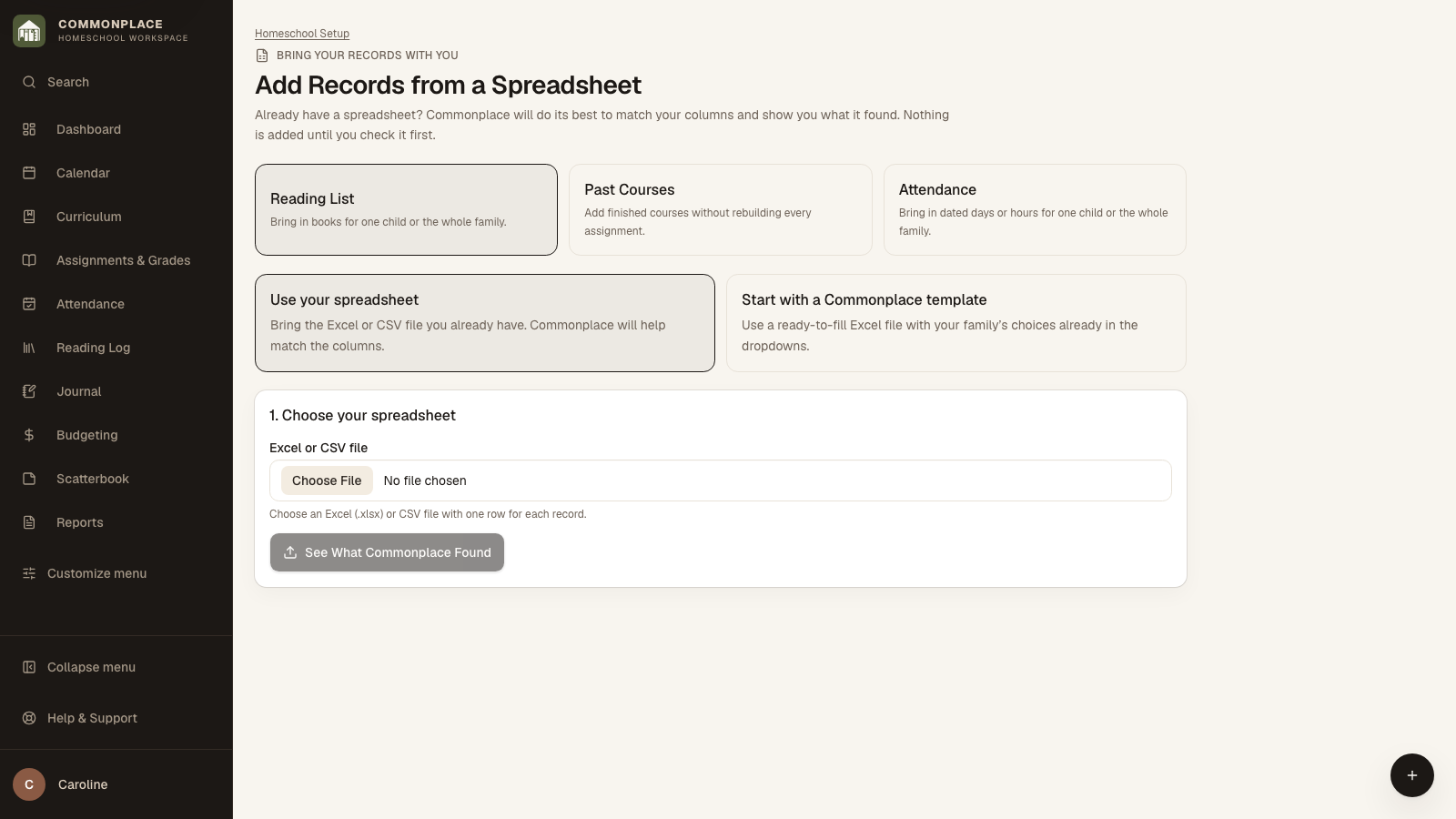
Find it under Homeschool Setup, or use the Add from a spreadsheet link on Reading Log, Attendance, or Assignments & Grades. Choose Reading List, Past Courses, or Attendance.
- 2
Choose how you want to begin
Use your spreadsheet if you already have one. Choose Start with a Commonplace template if you would rather use a ready-to-fill Excel file with your students, school years, and subjects in the dropdowns.
- 3
Choose your Excel or CSV file
A spreadsheet you already use does not need to have Commonplace column names. It should have one row for each book, past course, or attendance day.
- 4
Check the column matches
Commonplace suggests matches—for example, Child Name with Student or Book Name with Title. Review every match and change anything that does not look right. Fields marked Needed must be matched before you can continue.
- 5
Check the records
Commonplace shows the records it understood and points out rows that need attention. Nothing has been added yet.
- 6
Fix anything that needs attention
You can correct a column match on the page. If a date, student, school year, or other value needs changing, update the spreadsheet and let Commonplace look again.
- 7
Add and spot-check the records
Choose Add Records when the preview is ready, then check Reading Log, Assignments & Grades, or Attendance to confirm the imported information.